How I almost lost access to the Oracle Cloud server
5 min read December 07, 2025 #linuxRecently, I tried to set up a network tunnel to access some of my services running on a free-tier Oracle Cloud ARM compute instance. Despite correctly setting the ingress rules and iptables and ufw, there was a problem with opening the UDP port. Then I made a stupid mistake: I routed all the server's traffic through the closed port.
AllowedIPs = 0.0.0.0/0, ::/0
And
Immediately, my SSH connection was closed. All my running services stopped responding.
Restart#
"Okay, a restart should fix the problem," I thought. I logged into the control panel and restarted the instance. But... nothing happened. There was still no connection. This was due to the systemd service that I had enabled previously.
Modify GRUB parameters#
I asked my friend and he suggested to fix the problem by loading the GRUB and adding init=/bin/sh to kernel command line, so we would be able to mount the root partition before systemd is loaded. then disable the wireguard systemd unit in chroot environment. But how do I log in to GRUB? Oracle Cloud has a Cloud Shell connection — a web console, and a local connection — SSH/VNC through a proxy.
The first option didn't work. I dropped into a tty login, but since the Oracle Cloud instance uses SSH key login by default, I have never seen a password for the root user.

The second option, however, gave me slightly more opportunities.
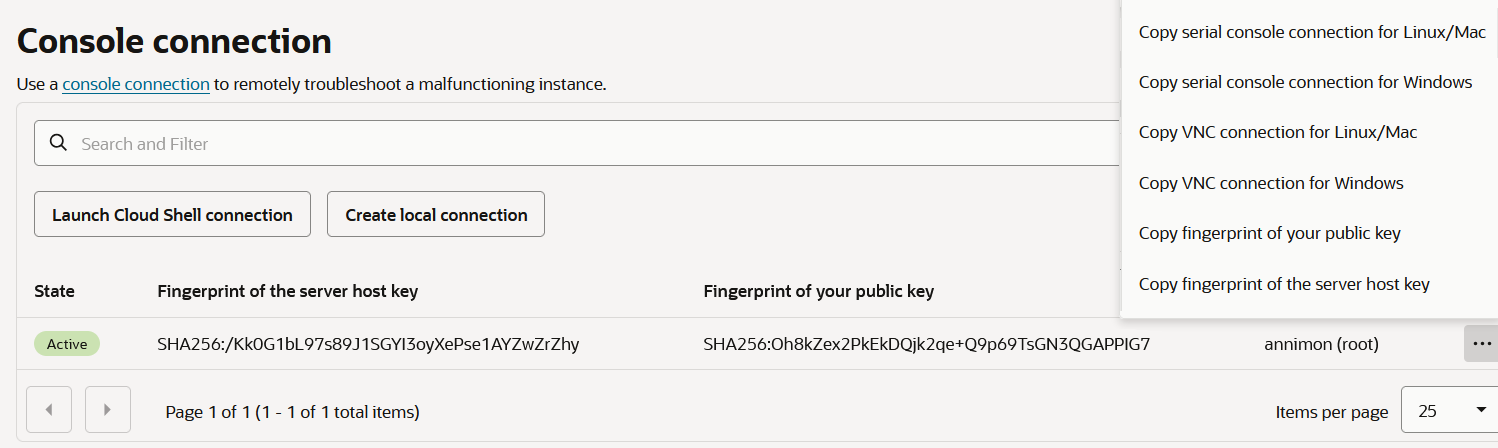
It asked for the SSH public key. Then, I copied the VNC connection command and modified it slightly to include my private key and enable the ssh-rsa algorithm.
Now, I was able to see my boot logs by connecting to localhost:5900 via the VNC client:
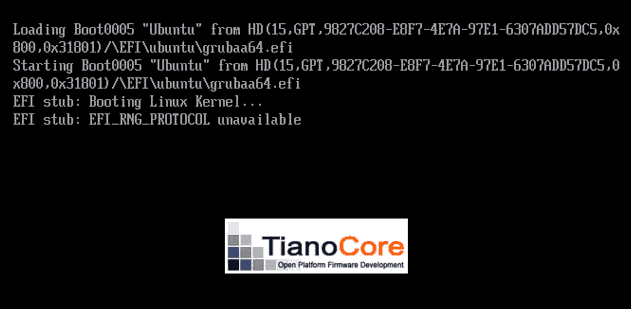
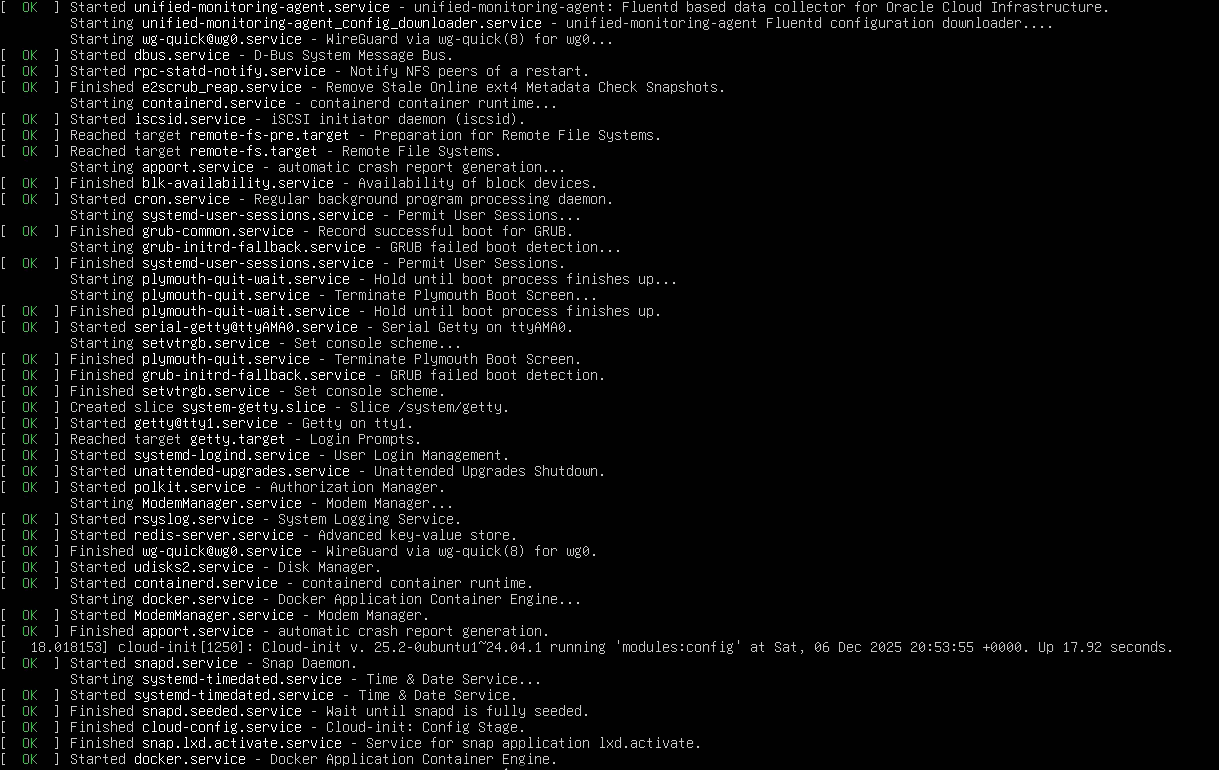
I wanted to get rid of this one:
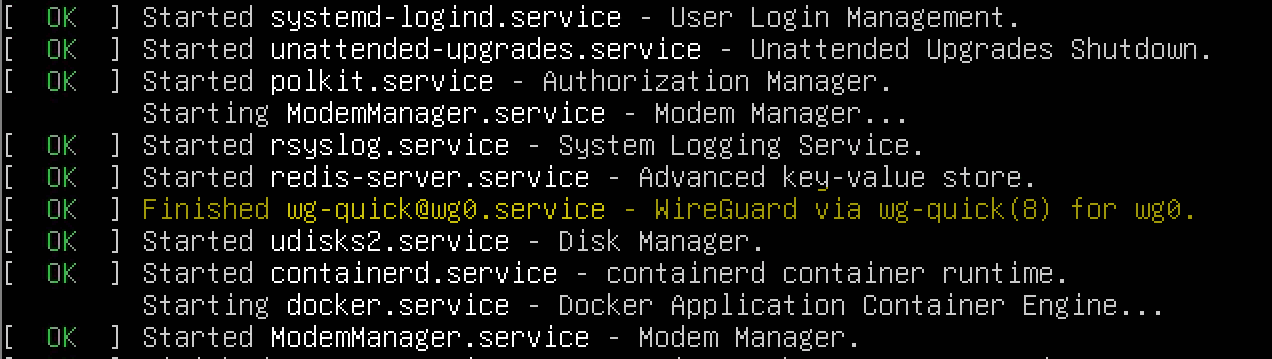
Well, back to GRUB. I pressed Ctrl+Alt+Del to initiate a reboot, then hit Esc and here we are: BIOS.
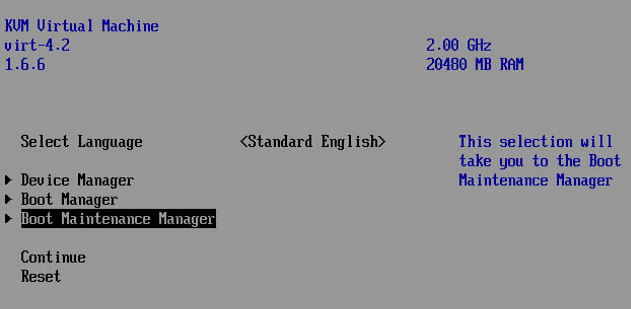
And the boot options:

Unfortunately, there is no option to modify the boot parameters. Together with my friend, we tried to get something from the EFI shell but realized that the GRUB configuration was located on a different partition we don't have access to.
Run command#
Time for other options. Oracle has a Run command function that passes commands to a running instance.
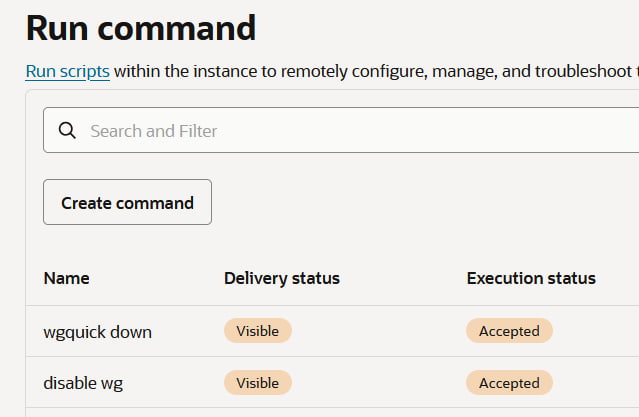
I tried a few commands but received
Warning: no response received yet.
Attach the boot volume to another instance#
Another option was to detach the boot volume from my broken instance, create a new instance and then attach the volume to it. Then, I could mount it and disable the systemd service.
However, I was unable to create a new instance, because there were no available ARM Ampere instances in my availability domain. So I created a minimal, free-tier AMD instance with 1 CPU and 1GB RAM. Still no luck: attaching my boot volume to this instance was impossible. It could be because of the different locations within the same availability domain, the different architecture, or the free-tier account.
Private network#
When creating a new AMD instance, I've seen an option to use the same private network. This gave me the idea to log in through the same private network via the private IP address of my broken instance.
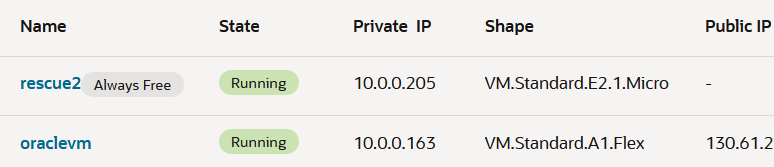
First, I need to log in to my new AMD instance. How? A free-tier account comes with only one public IP address, so I can't log in with the SSH keys that I provided during the instance setup. Okay, I'll just use the same trick with the local connection that I did previously. Unfortunately, even with the new instance, I still don't know my root password!
It's time to create a new AMD instance and use the cloud-init script:
chpasswd:
  list: |
    ubuntu:5up3r53cR3TPa5SW0rD
  expire: false
ssh_pwauth: true
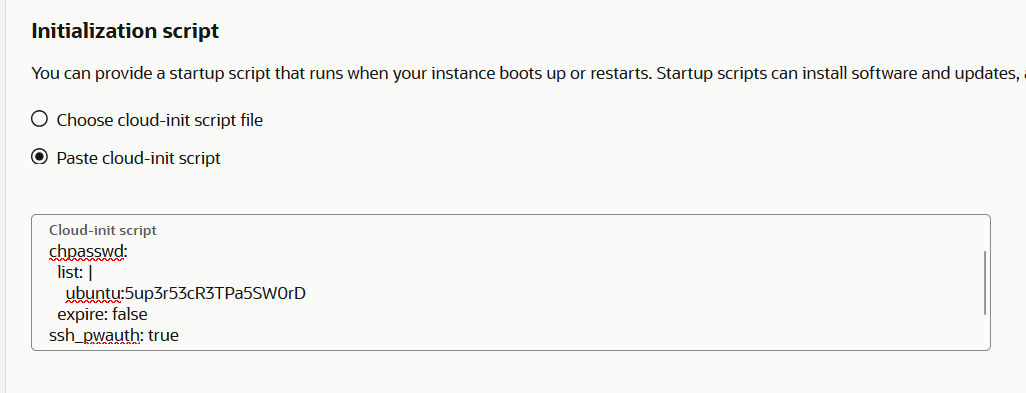
Then, the same trick with the local connection. This time without the port forwarding for VNC, just ssh.

Next, copy my private ssh key and log in to the private IP of my broken instance:
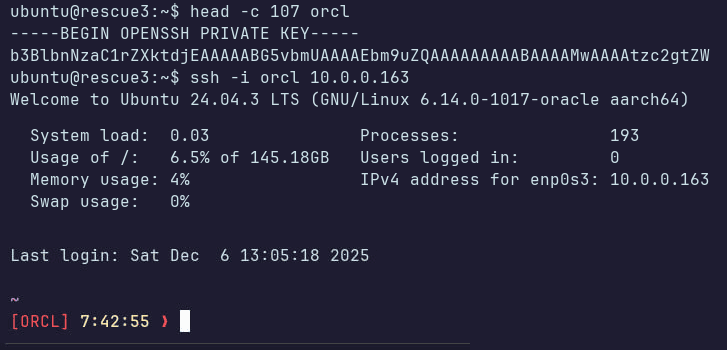
Finally, the access to my server!

Now, the wg0 service. Finish him:
Conclusion#
What I learned:
Never play with the network when you have only one way to control the server.
The same for distro upgrades and file system operations, where you can lose your SSH port or keys. Look for alternative connection options such as VNC or RDP.
Set the root password.
It's needed not only to log in to TTY, but also to prevent obvious mistakes when running sudo.